

- Embed chat and calling into any HTML page
- Customize themes, colors, and typography
- Toggle features on and off
- Go live with a simple embed code snippet
Ready to add chat to your HTML website?
Go to the Integration Guide
Widget Builder Features
No-Code Visual Configuration — Widget Builder provides a visual configuration environment for designing your chat widget before embedding. Toggle-Based Feature Control — Messaging and calling features can be controlled through configuration settings in the Widget Builder dashboard. Ready-to-Embed Code — After configuration, Widget Builder generates a code snippet you can paste directly into your HTML page.How to Use Widget Builder
1. Design
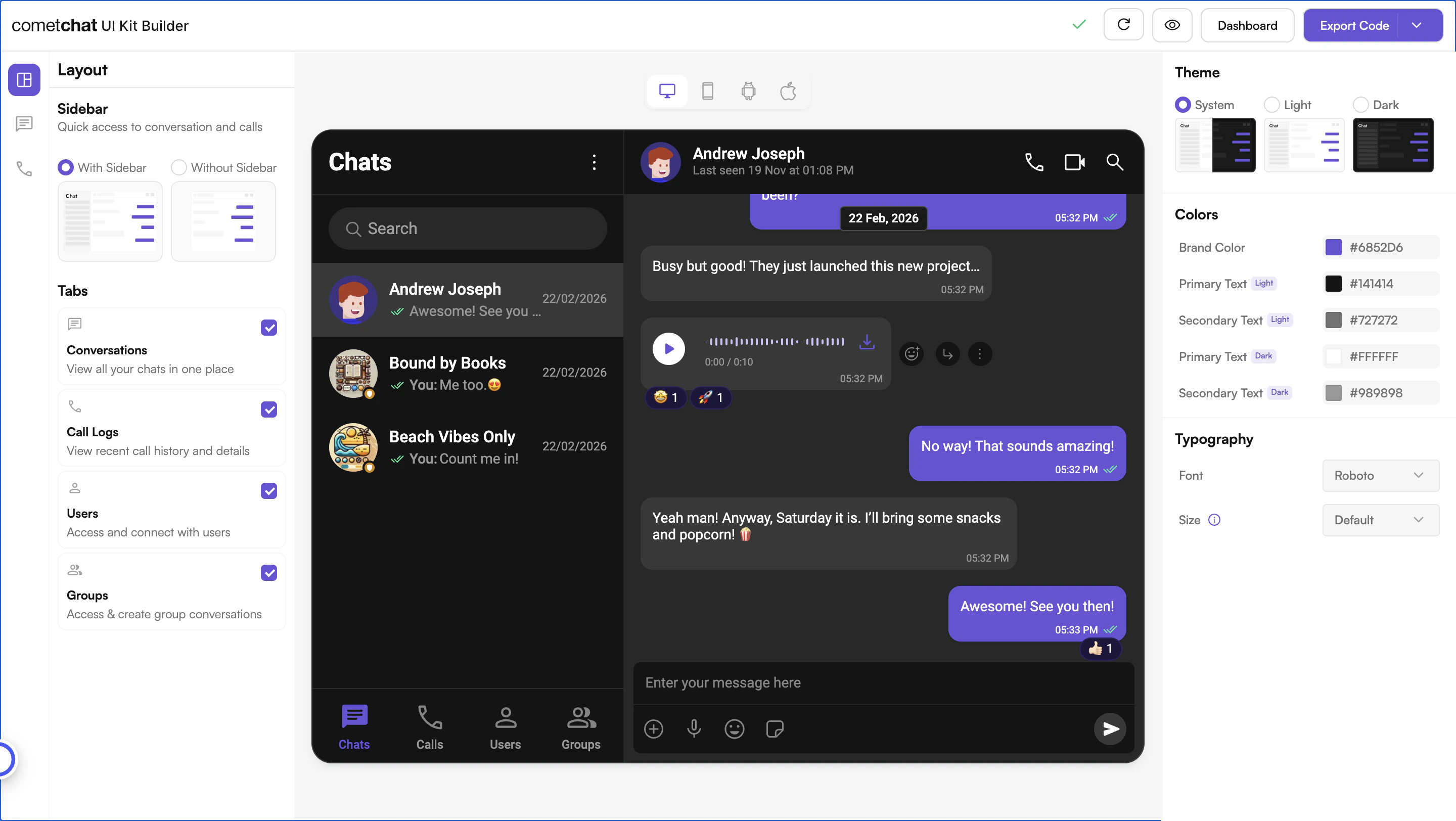
Customize your chat widget using the visual Widget Builder:- Configure layout — Toggle all the required features in the dashboard.
- Toggle features — Turn chat and calling features on and off from the builder interface.
- Themes — Select between system, light, and dark themes. Choose custom colors and typography.
2. Get Embed Code
Once configured, get the embed code snippet for your widget.- Click on Get Embedded Code
- Note your app credentials (App ID, Auth Key, Region, Variant ID)
- Copy the code snippet
3. Integrate
Add the embed code to your HTML page and go live.- Paste the code snippet into your HTML file
- Configure credentials — Set your App ID, Region, and Auth Key
- User Authentication — CometChat uses a UID (User ID) to identify each user. Authenticate users to enable chat functionality.
- Launch — Open your HTML page and the chat widget is live
Follow the full Integration Guide
Step-by-step instructions for embedding the Widget Builder into your HTML website
Try Live Demo
Experience the CometChat Widget Builder in action:Launch Live Demo
Need Help?
Developer Community
Connect with other developers and get answers
Support Portal
Contact our support team for assistance
Related Resources
JavaScript Chat SDK
Learn more about the CometChat JavaScript SDK
Advanced Widget Setup
Explore advanced JavaScript controls — open chats, listen for events, and more
WordPress Widget
Widget Builder for WordPress websites
Shopify Widget
Widget Builder for Shopify stores